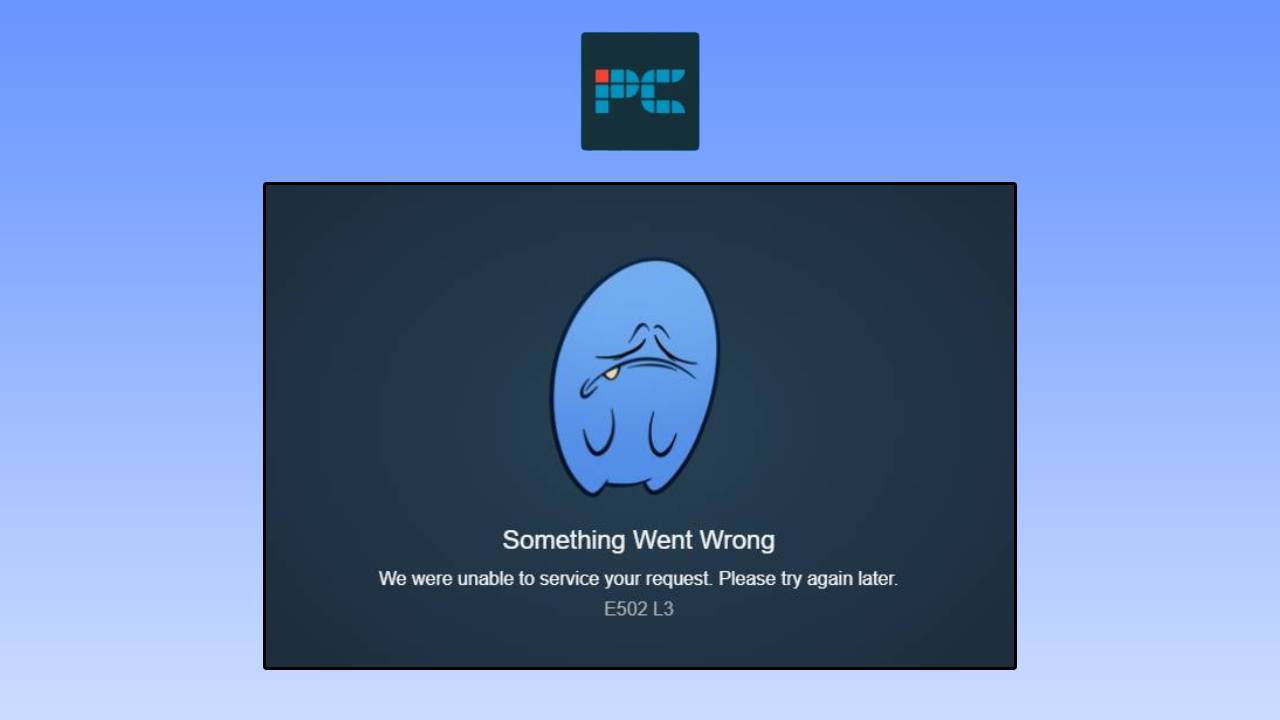
Steam Error E502 L3: Unraveling the Mystery of "Something Went Wrong"
Few things are as frustrating for a PC gamer as firing up Steam, ready to dive into your favorite title or explore the latest sales, only to be met with an unhelpful error message: "Something went wrong. We were unable to service your request. Please try again later. E502 L3." This enigmatic message, commonly known as Steam Error E502 L3, often leaves users wondering if their computer is to blame or if the vast Steam network is experiencing issues. Understanding the root cause is the first step toward a quick resolution.
The Steam Error E502 L3 typically manifests when you attempt to access core Steam services, such as the bustling Store, the interactive Community pages, or even the essential login process. It can also appear during critical moments like attempting to finalize a game purchase, interrupting your transaction flow. While it might feel like a personal attack from your PC, the good news is that this error frequently stems from Steam's powerful, yet sometimes overwhelmed, server infrastructure rather than a fault on your end. However, local client issues can also contribute, making a systematic approach to fixing Steam Error E502 L3 crucial. Let's explore why this error occurs and how you can resolve it swiftly.
Is it Your PC or Overloaded Servers? Diagnosing Steam Error E502 L3
The dual nature of the Steam Error E502 L3 – originating from either your local setup or Steam's global servers – necessitates a diagnostic approach. Before you delve into complex troubleshooting on your machine, it's vital to determine if the issue is widespread. Think of it as checking the weather forecast before blaming your umbrella for getting wet.
1. Check Steam Server Status First
The most common culprit behind the Steam Error E502 L3, especially during peak times, is an overloaded Steam server. Valve's platform is a colossal ecosystem, processing millions of requests simultaneously. Major sales events like the Steam Summer Sale or Winter Sale, highly anticipated game launches, or significant platform updates can drive traffic to unprecedented levels, causing servers to buckle under the strain. When this happens, their systems struggle to process requests, leading to the dreaded "Something went wrong" message.
To confirm if Steam's servers are experiencing a public outage, before doing anything else, consult reliable third-party status checkers. Websites like Downdetector for Steam or official Steam Status pages provide real-time information on server health across various regions and services (Store, Community, Login). If these sites report widespread outages or indicate that the Steam Store or Community servers are down, your troubleshooting efforts on your PC will be futile. In such cases, patience is indeed a virtue – the only solution is to wait for Valve's engineering teams to restore service, which usually resolves the error automatically.
Troubleshooting Client-Side Issues: Practical Fixes for Steam Error E502 L3
If server status checkers indicate that Steam's systems are operating normally, then the Steam Error E502 L3 likely points to a localized issue on your computer or network. Don't despair; many common problems can be quickly rectified with a few straightforward steps.
1. Restart the Steam Client
This might seem like an overly simple suggestion, but a full restart of the Steam client is surprisingly effective for resolving a multitude of temporary glitches. It flushes out any minor software conflicts, refreshes the connection between your PC and Steam's servers, and clears transient errors that might be preventing proper page loading or request processing.
- Completely close the Steam application. Do not just minimize it to the system tray.
- Press Ctrl + Shift + Esc to open your Task Manager.
- Navigate to the "Processes" tab and look for any lingering Steam-related processes (e.g., Steam Client Bootstrapper, Steam Client WebHelper). Select them and click "End task."
- Once all Steam processes are terminated, launch Steam again.
This simple action often resolves temporary connection hiccups and is a great first step in any troubleshooting guide for what causes Steam Error E502 L3 locally.
2. Clear the Steam Download Cache
Steam maintains a cache of temporary data to expedite loading times and improve overall client responsiveness. However, if this cache becomes corrupted or accumulates outdated information, it can actively interfere with the client's ability to process requests or display store pages correctly, triggering the Steam Error E502 L3.
- Open the Steam client.
- Click on "Steam" in the top-left corner of the window.
- Select "Settings" from the dropdown menu.
- In the Settings window, navigate to the "Downloads" tab.
- Click the "Clear Download Cache" button. Confirm your action if prompted.
- After clearing the cache, restart Steam and log in again.
Don't worry about losing game data; Steam will automatically rebuild the necessary cache files upon restart, often resolving the underlying corruption.
3. Change Your Steam Download Region
Steam's global infrastructure relies on various server clusters distributed worldwide to handle user traffic efficiently. Sometimes, a specific server cluster serving your default download region might become temporarily overloaded or experience technical difficulties, even if other regions are functioning normally. Switching your download region can reroute your connection to a different, less congested server cluster, potentially bypassing the issue causing the Steam Error E502 L3.
- Open Steam Settings.
- Go to the "Downloads" tab.
- Under "Download Region," click the dropdown menu.
- Select a different server region that is geographically close to you. Choosing a nearby region is crucial for maintaining optimal download speeds and reducing latency.
- Restart Steam for the changes to take effect.
4. Flush Your DNS Cache
Your computer uses the Domain Name System (DNS) to translate human-readable website addresses (like store.steampowered.com) into numerical IP addresses that computers understand. If your DNS cache contains outdated or incorrect information, your computer might struggle to establish a proper connection with Steam's servers, leading to network-related errors like E502 L3. Flushing your DNS cache forces your system to fetch fresh DNS records.
- Press the Windows key + R to open the Run dialog.
- Type
cmdand press Enter to open the Command Prompt. - In the Command Prompt window, type the command:
ipconfig /flushdnsand press Enter. - You should see a confirmation message indicating that the DNS resolver cache was successfully flushed.
- Close the Command Prompt and restart Steam.
5. Try Accessing Steam From a Browser
If the Steam client continues to display the Steam Error E502 L3, a useful diagnostic step is to attempt accessing the Steam Store or Community pages directly through a web browser. This helps isolate the problem: if the web version works flawlessly, it points more strongly to an issue with your Steam client installation or its local configuration. If it also fails in the browser, it might suggest a broader network connectivity problem on your end or a server-side outage that hasn't been widely reported yet.
- Open your preferred web browser (Chrome, Firefox, Edge, etc.).
- Navigate to https://store.steampowered.com or https://steamcommunity.com.
When Patience is the Only Fix: Understanding Server Overloads
Despite all the troubleshooting steps you can perform on your end, there are times when the Steam Error E502 L3 is unequivocally a server-side issue. These instances are largely unavoidable and require nothing more than patience.
As mentioned, peak events are prime times for this error. Consider the sheer volume of users trying to simultaneously snag deals during the Steam Summer Sale, the influx of players trying to download and launch a hotly anticipated new game on release day, or the collective strain when a major game update drops. These scenarios can momentarily overwhelm Steam's infrastructure, causing temporary service interruptions. While Valve constantly works to scale its systems, demand spikes can be immense.
During such server-side outages, troubleshooting on your part won't yield results because the problem isn't with your setup. Recovery times can vary:
- Minor outages: Often resolve within 10 to 30 minutes.
- Major sales or updates: May take 1 to 2 hours, or occasionally longer during unprecedented traffic events, for services to stabilize across all regions.
Keep an eye on the server status sites mentioned earlier. Once Valve's engineers have successfully mitigated the server load or fixed the underlying issue, Steam will typically load and function normally again without any intervention from you.
Conclusion
The Steam Error E502 L3, while annoying, is generally a manageable issue. By systematically diagnosing whether the problem lies with Steam's servers or your local setup, you can efficiently apply the correct solution. Always start by checking the server status, then move on to client-side fixes like restarting Steam, clearing the download cache, changing your region, or flushing your DNS. Remember that sometimes, the best solution is simply to wait for the colossal Steam network to recover from an expected surge in traffic. Armed with this comprehensive guide, you'll be back to gaming in no time.