Fix Steam Error E502 L3: A Comprehensive Troubleshooting Guide
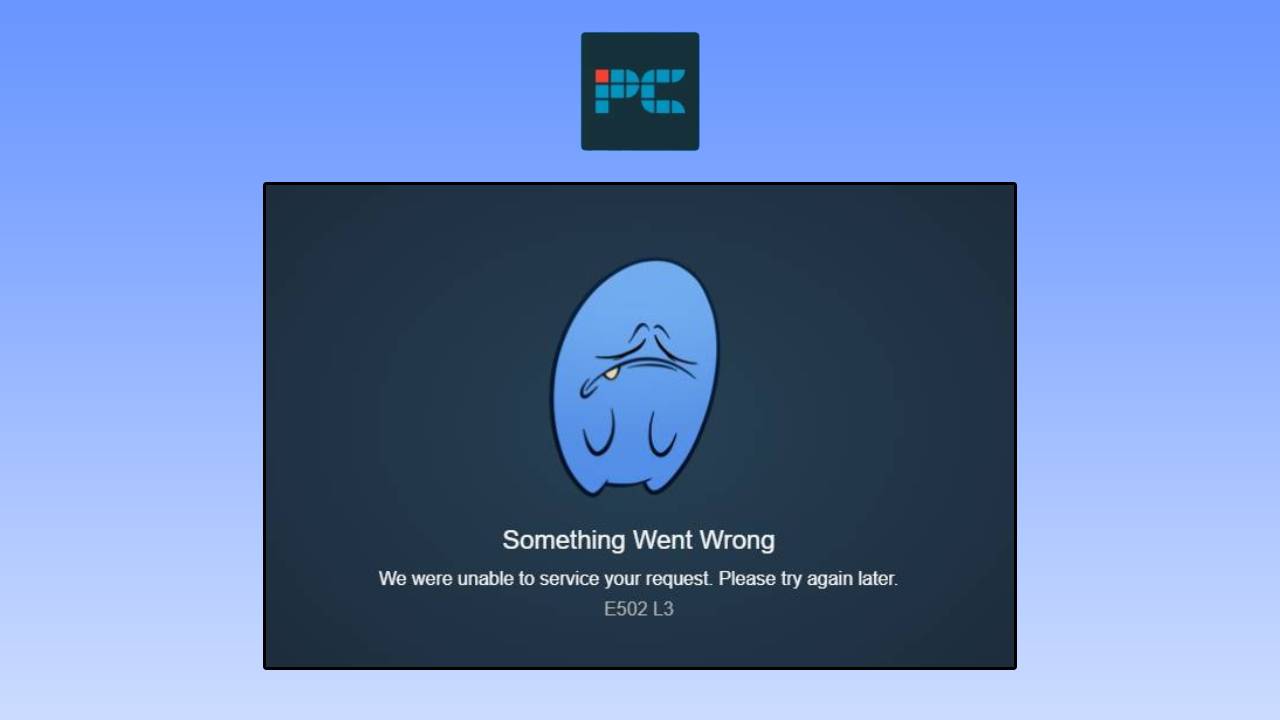
Encountering the "Steam Error E502 L3" can be a frustrating experience for any PC gamer. This perplexing message, often accompanied by "Something went wrong. We were unable to service your request. Please try again later," typically appears when the Steam client or website struggles to process a specific request. Whether you're trying to browse the latest game deals on the Steam Store, connect with friends on the Community page, or even just log in, this error can halt your gaming plans. While it might seem like a complex issue at first glance, the good news is that in many cases, the problem lies not with your computer, but with Steam’s own infrastructure. This guide will walk you through understanding why this error occurs and provide a systematic approach to resolve it, getting you back to your games as quickly as possible.
Understanding Steam Error E502 L3: More Than Just a Glitch
The Steam Error E502 L3 is essentially a generic "bad gateway" or "service unavailable" error code specifically implemented by Steam. It signals that a server acting as a gateway or proxy received an invalid response from an upstream server it was trying to access. This commonly translates to Steam's internal servers being overloaded or experiencing temporary issues. Think of it like a digital traffic jam: too many requests are trying to pass through a limited number of lanes, causing some requests to time out or fail.
This error is particularly prevalent during periods of high demand. Large sales events like the Steam Summer Sale, major new game launches, or significant platform updates can send a massive surge of users to Steam's servers, pushing them beyond their capacity. It can also appear during routine activities like attempting to complete a purchase, where specific transaction servers might be under strain. Understanding these underlying causes is the first step in effective troubleshooting. For a deeper dive into why this specific error manifests, read our detailed analysis:
Steam Error E502 L3: What Causes This Frustrating Issue?.
First Steps: Checking Steam's Health and Your Connection
Before diving into complex solutions, it's crucial to identify whether the problem is global (Steam's servers) or local (your PC and network). Starting with these foundational checks can save you a lot of time and effort.
Check Steam Server Status First
The most common culprit behind the E502 L3 error is an issue with Steam's own servers. Before you troubleshoot anything on your end, always confirm if Steam is experiencing an outage. There are several reliable resources to do this:
- Steam Status: Dedicated websites like Steam Status (e.g., `store.steampowered.com/stats/`) provide real-time updates on the operational status of various Steam services, including the Store, Community, and API.
- DownDetector: Websites like DownDetector compile user reports of outages for various online services. Searching for "Steam" there can quickly show if a widespread issue is ongoing.
- Social Media and Community Forums: Checking official Steam Twitter accounts or popular gaming forums (like Reddit's r/Steam) can often provide immediate, crowd-sourced information about ongoing outages.
If the Steam Store, Community pages, or login servers show signs of an outage, the most effective "fix" is simply patience. Valve's teams will be actively working to restore services, and the error will typically disappear automatically once their systems recover.
Restart the Steam Client
A simple restart can often work wonders. This action refreshes the connection between your computer and Steam's servers, clearing any temporary glitches or communication breakdowns that might have occurred.
Here's how to perform a thorough restart:
- Close Steam Completely: Don't just minimize it. Ensure the application is fully exited.
- Open Task Manager: Press Ctrl + Shift + Esc on your keyboard.
- End All Steam Processes: In the "Processes" tab, look for any entries related to Steam (e.g., "Steam Client Bootstrapper," "Steam Client Service," "Steam"). Select each one and click "End task." This ensures no lingering processes are interfering.
- Launch Steam Again: Reopen your Steam client and attempt to access the problematic page or service.
This straightforward step often resolves many temporary connection and client-side issues without needing to delve deeper.
Deeper Troubleshooting: Optimizing Your Local Setup
If Steam's servers appear healthy, the next step is to address potential issues on your local machine or network configuration. These solutions aim to clear corrupted data, optimize your connection, or bypass regional server bottlenecks.
Clear the Steam Download Cache
Steam uses a local cache to store temporary data, which helps the client load pages and content faster. However, if this cache becomes corrupted or accumulates too much outdated information, it can interfere with proper client operation, leading to errors like E502 L3 when trying to load store pages or make purchases.
To clear your Steam download cache:
- Open Steam: Launch the client as usual.
- Access Settings: Click on "Steam" in the top-left corner of the client window, then select "Settings" from the dropdown menu.
- Navigate to Downloads: In the Settings window, click on the "Downloads" tab on the left-hand side.
- Clear Download Cache: At the bottom of the Downloads tab, you'll see a button labeled "Clear Download Cache." Click it.
- Confirm and Restart: Steam will prompt you to confirm. Click "OK." You'll then be required to restart Steam and log in again.
After restarting, Steam will automatically rebuild a fresh, clean cache, which can resolve issues stemming from corrupted temporary data.
Change Your Steam Download Region
Sometimes, a specific server cluster responsible for your geographical download region might be experiencing temporary overload or connectivity problems, even if other Steam services are functional. By switching your download region, you force your Steam client to connect to a different set of servers, potentially bypassing the problematic one.
Follow these steps:
- Open Steam Settings: Go to "Steam" > "Settings" as before.
- Go to Downloads Tab: Select the "Downloads" tab.
- Find Download Region: Under the "Download Region" section, you'll see a dropdown menu.
- Select Another Nearby Region: Choose a different region, ideally one geographically close to your current location for optimal performance. Avoid selecting a region on another continent unless absolutely necessary, as this can increase latency.
- Restart Steam: Close and restart the Steam client for the changes to take effect.
Try accessing the problematic Steam page again after the restart. If it works, you can either keep the new region or try switching back to your original one later to see if the issue has resolved.
Flush Your DNS Cache
Your computer uses a DNS (Domain Name System) cache to store IP addresses of websites you've recently visited. This speeds up future access. However, if this cache becomes corrupted or outdated, it can lead to network routing problems, preventing your computer from correctly resolving and reaching Steam's servers. Flushing the DNS cache clears this local record, forcing your system to fetch fresh DNS information.
To flush your DNS cache:
- Open the Run Dialog: Press the Windows key + R on your keyboard.
- Open Command Prompt: Type
cmd into the Run dialog box and press Enter. This will open the Command Prompt.
- Run the Flush DNS Command: In the Command Prompt window, type the following command exactly as it appears and press Enter:
ipconfig /flushdns
You should see a confirmation message indicating that the DNS Resolver Cache was successfully flushed.
- Restart Steam: Close the Command Prompt and restart your Steam client.
This can resolve connectivity issues that might be preventing your PC from establishing a proper connection with Steam's services.
Try Accessing Steam From a Browser
This is a crucial diagnostic step that helps differentiate between an issue with your Steam client software and a broader network or server problem. If the Steam client is consistently failing to load pages, try accessing the Steam store or community through a web browser.
Visit:
https://store.steampowered.com in your preferred browser (Chrome, Firefox, Edge, etc.).
If the web version of Steam loads and functions normally while your client is still displaying the E502 L3 error, it suggests the problem is likely isolated to your Steam client installation or specific client-side processes rather than a fundamental network issue or a complete Steam server outage. Conversely, if both the client and the browser exhibit the error, it points more strongly towards a network issue on your end or a widespread server problem.
The Waiting Game: When Steam Servers Are Truly Down
Despite all the troubleshooting efforts on your end, there will be instances where the E502 L3 error persists because the root cause is genuinely a server-side problem with Steam itself. In these scenarios, no amount of local troubleshooting will help; the only effective solution is to wait for Valve to resolve the underlying server issues. This is where patience becomes a virtue.
These outages are usually temporary, and their duration can vary:
- Minor Outages: For smaller, localized issues or brief server hiccups, the problem might resolve itself within 10 to 30 minutes.
- Major Outages: During peak times, significant game launches, or massive sales events (like the Steam Winter Sale), server recovery can take longer, typically ranging from 1 to 2 hours, or even slightly more in rare cases.
During these periods, it's advisable to monitor official Steam communication channels (e.g., their Twitter accounts) or reliable third-party status checkers for updates. Once the servers recover, your Steam client should load normally again without any further intervention required. For more details on distinguishing between local and server-side issues, consult our article:
Steam Error E502 L3: Is It Your PC or Overloaded Servers?.
Additional Tips and Insights
*
Check Firewall/Antivirus: Ensure your firewall or antivirus software isn't inadvertently blocking Steam's connection. Temporarily disabling them (with caution) can help diagnose if they are the cause.
*
Restart Your Router: A simple restart of your home router can often resolve temporary network glitches that might be affecting your connection to Steam.
*
Try a Different Network: If possible, connect your PC to a different network (e.g., a mobile hotspot) to see if Steam works. This helps rule out issues specific to your home internet service provider.
*
Update Network Drivers: Ensure your network adapter drivers are up to date. Outdated drivers can sometimes cause connectivity problems.
Conclusion
The Steam Error E502 L3 can be a disruptive message, but by systematically approaching the problem, you can often resolve it quickly. The most crucial first step is always to check the Steam server status, as the error frequently stems from server overload during high-traffic events. If Steam's servers appear stable, then local troubleshooting steps like restarting the client, clearing the download cache, changing your download region, or flushing your DNS cache can often rectify the issue. Remember, patience is key, especially when dealing with server-side problems that are beyond your control. By following this comprehensive guide, you'll be well-equipped to diagnose and fix Steam Error E502 L3, ensuring a smoother gaming experience.